
How Krita thumbnails work on Windows
File Explorer cannot read KRA files by itself. The thumbnails come from the Krita Windows Shell Extension, which comes with the Krita installer.
Three common setups go without it. The portable zip version of Krita does not show previews until you install the extension yourself, as Krita’s manual notes. The Steam version is missing them too: Krita’s bug tracker lists it as a known issue and advises installing the extension by hand. And a PC without Krita, where someone has sent you KRA files, has nothing to show them with.
First, check File Explorer’s own settings
If your photos show as icons too, the cause is a Windows setting rather than Krita. Check these three things.
- 1In File Explorer, open the three-dot menu, choose Options, and go to the View tab. Make sure "Always show icons, never thumbnails" is not ticked.
- 2Use the View menu to pick Medium icons or larger. Lists and Details never show thumbnails.
- 3If thumbnails look wrong or out of date, run Disk Cleanup, tick Thumbnails and press OK. Windows rebuilds them the next time you open the folder.
Install or repair Krita’s shell extension
If you use the portable or Steam version, or thumbnails disappeared after a Windows or Krita update, install the extension on its own.
- 1Go to krita.org/en/download and download the Windows Shell Extension.
- 2Run it and finish the setup.
- 3Sign out of Windows and back in, or restart, so File Explorer loads it.
See KRA files without Krita’s extension
When the extension will not come back, or Krita is not on the PC at all, Design Previewer can show the thumbnails instead. Krita saves a preview and a flattened copy of the painting inside every KRA file, and Design Previewer reads those, so the file is never opened in Krita and never changed.
It covers KRZ and OpenRaster (ORA) files as well. Where Krita’s own extension is installed and working, that stays in charge, and Design Previewer fills the gaps.
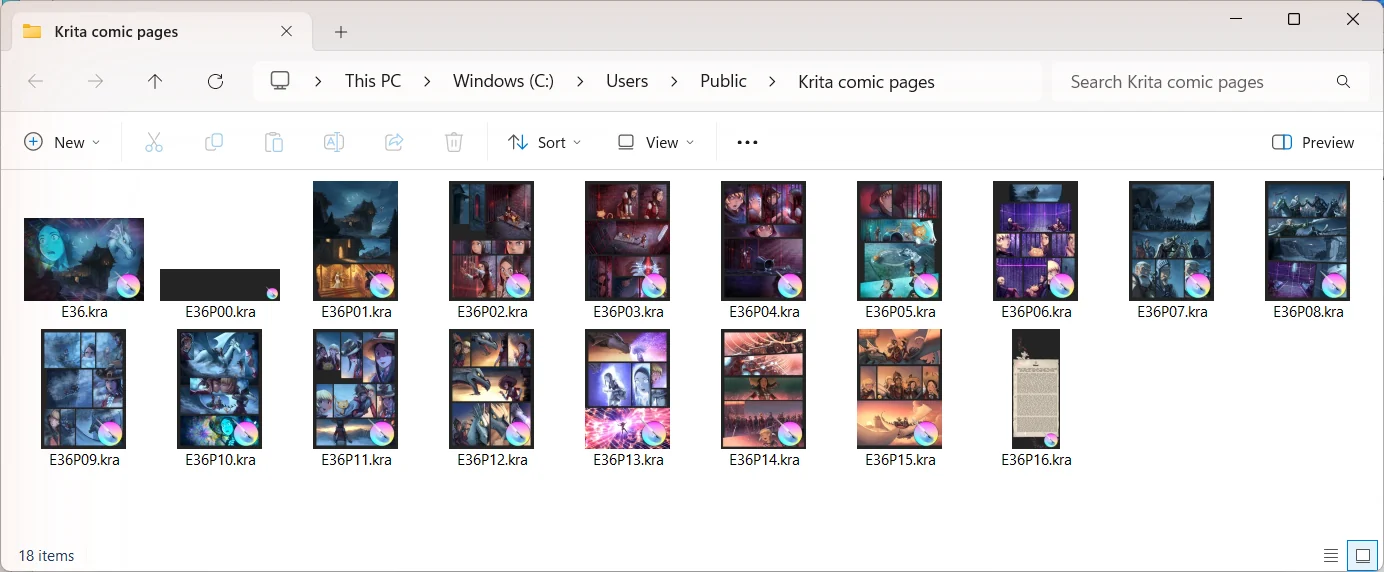
- 1Install Design Previewer. It is free for 15 days, with no account and no card.
- 2Open a folder of KRA files and choose View, then Large icons.
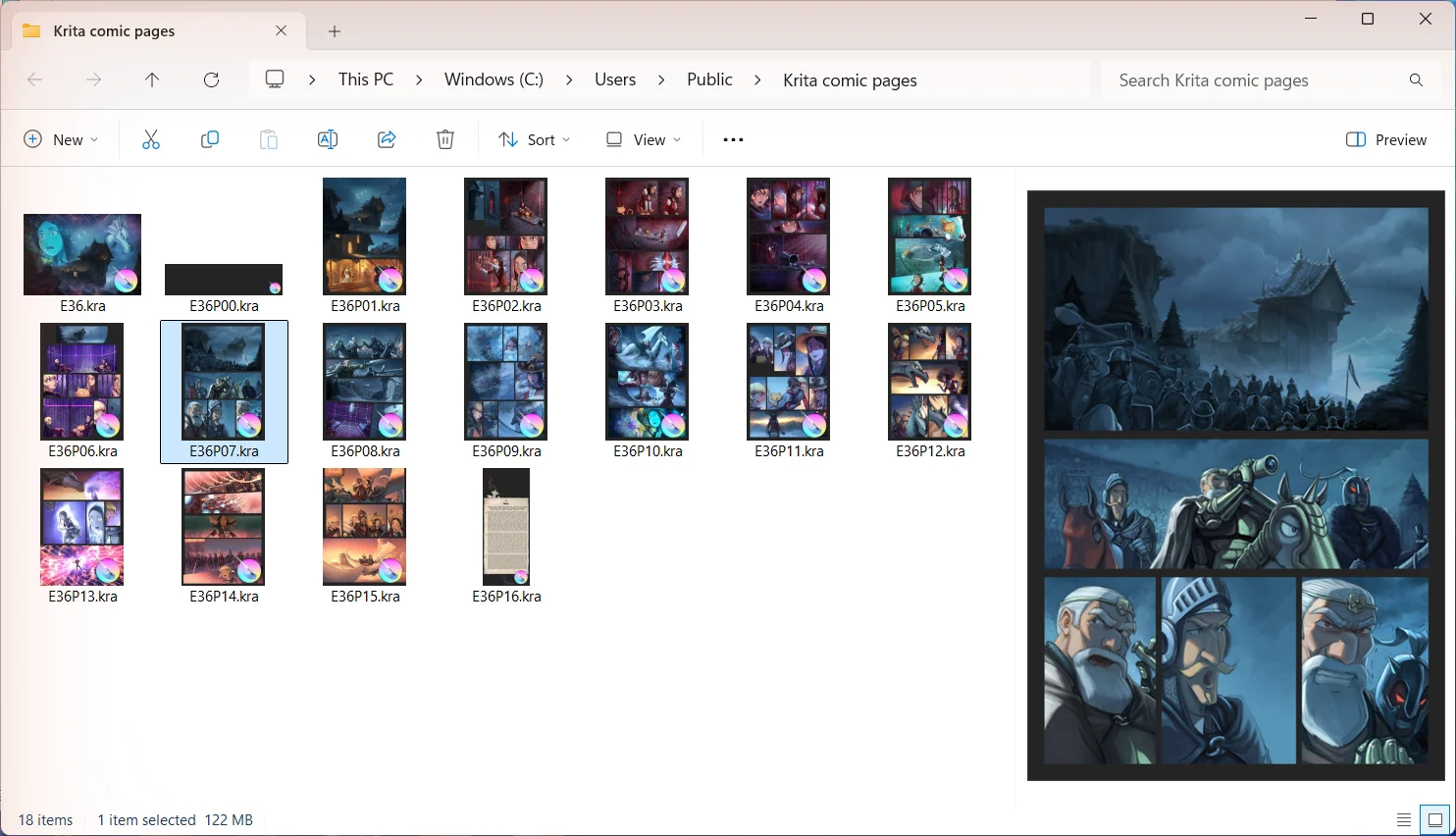
- 3Select a file and press Alt+P to see the whole painting in the preview pane.
Large paintings stay quick
Folder thumbnails use the small preview inside each file, so a folder of huge paintings opens as fast as a folder of small ones. The full canvas is read only for the file you select in the preview pane.
 Read nextKrita thumbnails in Windows File Explorer