What the “Windows protected your PC” screen is
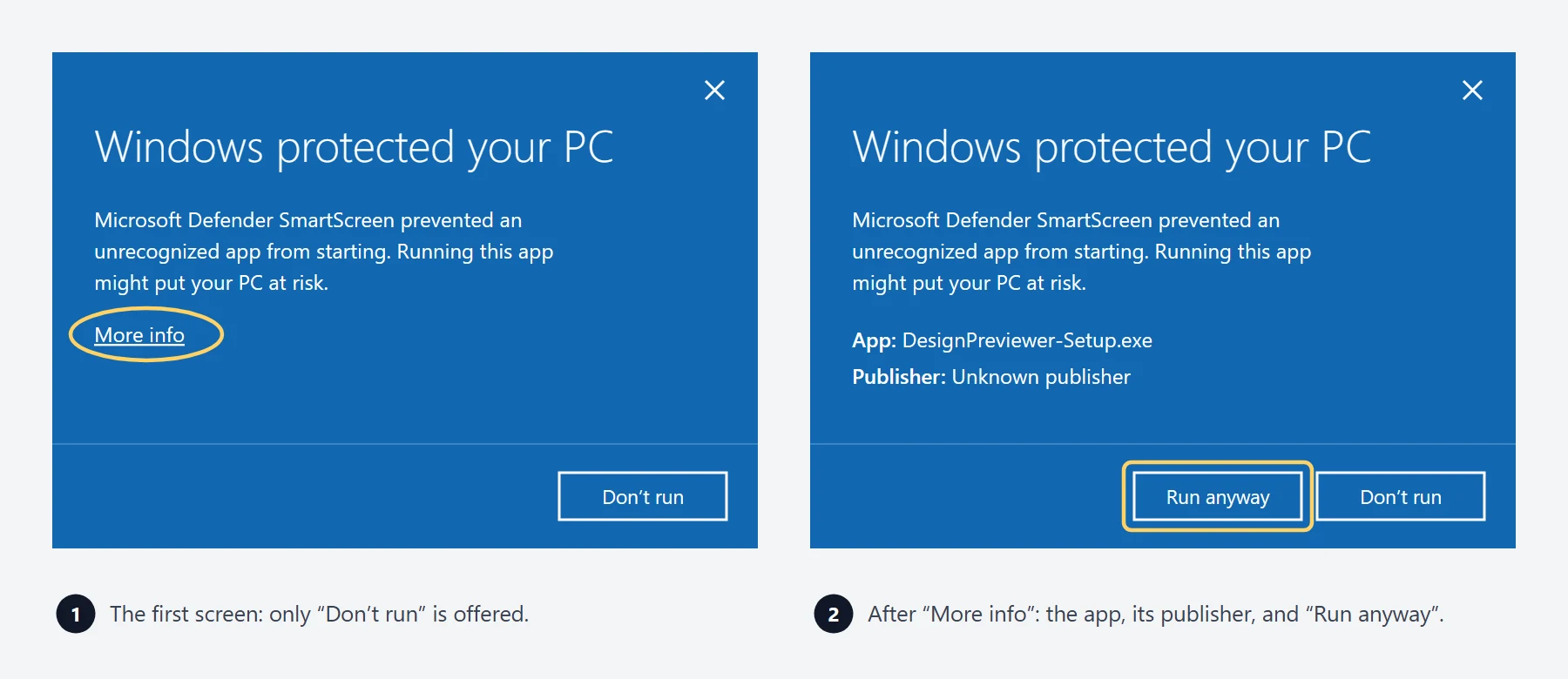
The blue screen comes from Microsoft Defender SmartScreen, a feature built into Windows 10 and Windows 11. It steps in when you open a program you downloaded from the internet, before the program is allowed to start.
The first screen offers only one button, “Don’t run”. Click “More info” and it shows the name of the file, the publisher, and a second button, “Run anyway”.
Why it appears: reputation, not a virus scan
SmartScreen does not open the file and look for a virus. It asks a different question: is this file already well known? In Microsoft’s own words, it checks downloaded files against a list of files that are “well known and downloaded frequently”, and “if the file isn’t on that list, Microsoft Defender SmartScreen shows a warning, advising caution.”
So the warning appears for two very different kinds of program: harmful files that have been reported, and perfectly safe files that Windows simply has not seen enough of yet. Even a popular app can trigger it right after an update, because every new version is a new file that starts with no download history of its own.
Microsoft also explains that the reputation is earned slowly. Its guide for app developers says there is no exact threshold and “it can take several weeks and hundreds of clean installs from a wide audience.”
Is it a hack or a virus?
No. The SmartScreen screen on its own does not mean your PC has been hacked, and it does not mean the file contains a virus. It means Windows does not recognise the file yet.
A real detection looks different. When Microsoft Defender Antivirus finds malware it says so plainly, names the threat, and usually removes or quarantines the file without asking you to choose. If you ever see that kind of message, do not run the file.
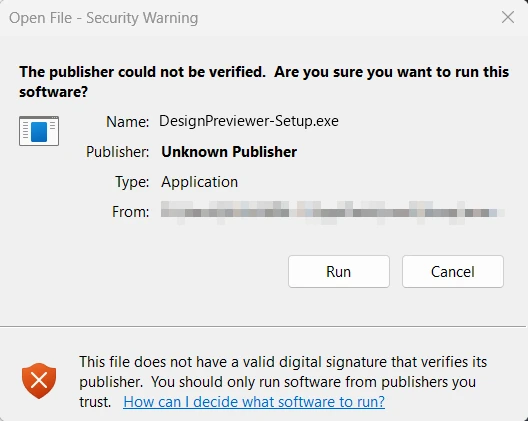
You may also see a smaller grey box called “Open File - Security Warning”. It says “The publisher could not be verified” and lists the publisher as “Unknown Publisher”. That box only means the file has no digital signature. It is not a detection either.
What a digital signature does, and what it does not
Developers can sign their program with a code-signing certificate. The signature tells Windows who published the file and proves it has not been changed since. A signed program shows the company’s name instead of “Unknown publisher”.
A signature is about identity, not safety. It does not mean a program has been checked for viruses, and it does not remove the SmartScreen warning straight away. Microsoft says that “even when signed, a newly created binary could still show a SmartScreen warning” until it builds reputation, and that the more expensive Extended Validation (EV) certificates “no longer impact SmartScreen behavior”.
So the warning tells you a file is new to Windows. Whether it is safe is something you check, as shown below.
| What you see | What it means | Is it a virus? | What to do |
|---|---|---|---|
| “Windows protected your PC” (blue) | Windows does not know this file well yet | Not by itself | Check where it came from, then scan it as shown below |
| “Open File - Security Warning”, Unknown Publisher (grey) | The file has no digital signature | Not by itself | Check the source and scan it |
| Microsoft Defender says it found a threat | Antivirus matched the file to known malware | Very likely | Do not run it. Let Defender remove it |
| Many engines flag it on VirusTotal | Several antivirus companies agree it is harmful | Very likely | Delete the file |
| One or two little-known engines flag it | Often a cautious or generic rule, sometimes a real early warning | Possibly a false positive | Look at which engines and why, and ask the publisher |
How to check any file for viruses before you run it
Before you click “Run anyway”, do these three checks.
- 1Check where the file came from. Download software only from the developer’s own website or a store you trust. A file from a link in a comment, a chat message or a “free download” site may not be the developer’s file, even if it has the same name.
- 2Scan it with Microsoft Defender, which is already on your PC. In File Explorer, right-click the file, choose Show more options if you are on Windows 11, then Scan with Microsoft Defender.
- 3Check it on VirusTotal, which asks more than 70 antivirus engines at once. The next section shows how.
What is VirusTotal?
VirusTotal is a free website that checks a file or a link with many antivirus products at the same time. In its own description, it “inspects items with over 70 antivirus scanners and URL/domain blocklisting services”, and it acts as “an aggregator of information”: it shows you what each engine thinks rather than giving a verdict of its own.
One antivirus product can miss something, or flag a safe file by mistake. Seventy of them looking at the same file give a much clearer picture.
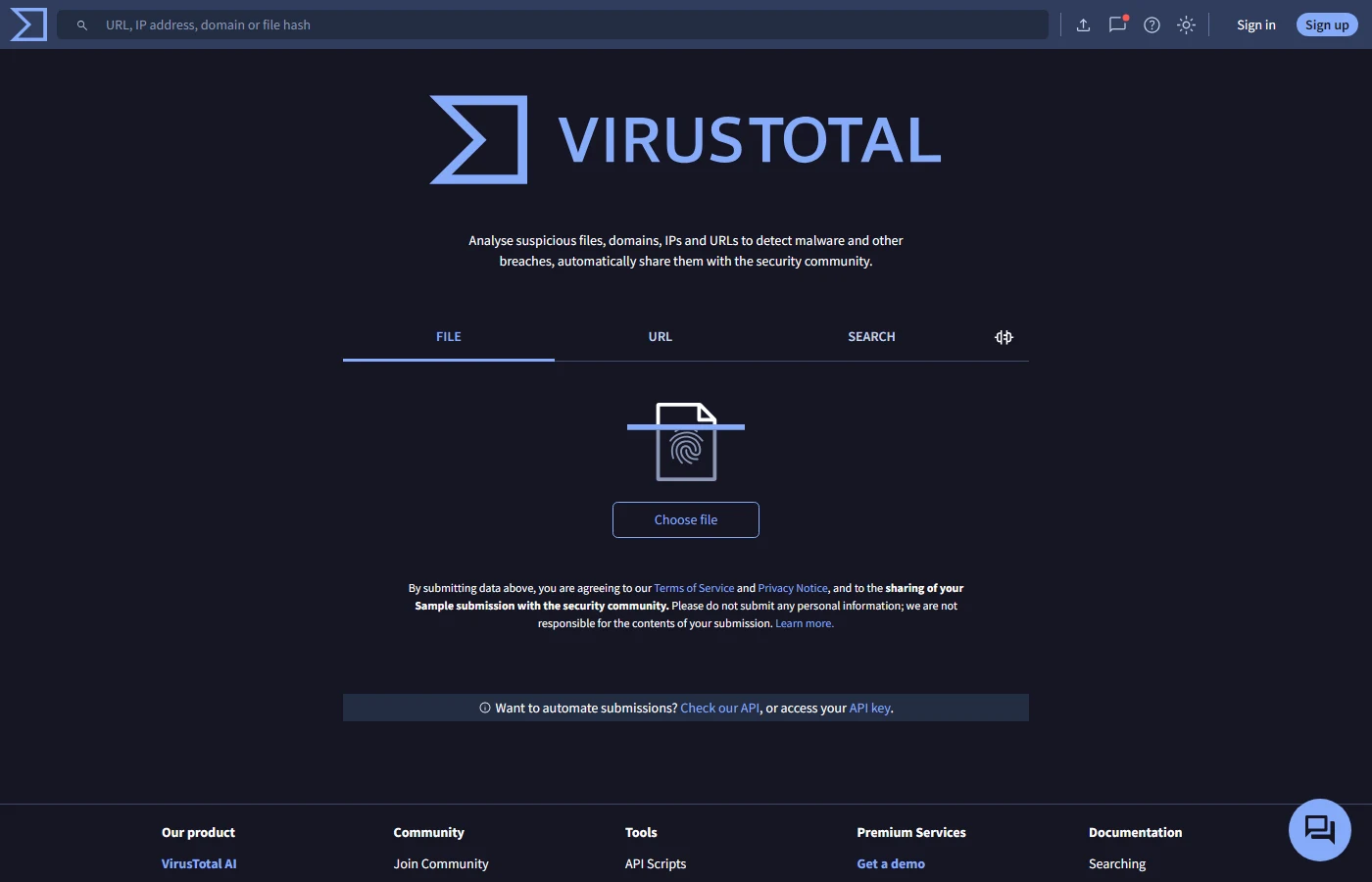
- 1Go to virustotal.com and keep the File tab selected.
- 2Click Choose file and pick the program you downloaded. Large installers take a minute to upload.
- 3Read the result at the top. “No security vendors flagged this file as malicious” is what you want to see. A red number such as 25 / 70 means many engines call it harmful.
- 4Prefer not to upload? Use the Search tab and paste the file’s SHA-256 hash. If someone has checked the same file before, you see its report straight away.
What you upload is not private. VirusTotal says reports “are shared with the public VirusTotal community” and that the contents of files “may also be shared with premium VirusTotal customers”. Check programs you downloaded, never your own private documents.
To get a file’s SHA-256 hash, open Command Prompt and type certutil -hashfile "C:\path\to\file.exe" SHA256. The long line of letters and numbers it prints is the hash.
Why cracked software is the real danger
The programs most likely to harm your PC are often the ones people install on purpose, to save the price of a licence: cracked software, “pre-activated” copies, keygens and patches downloaded from torrent or warez sites.
A crack works by changing a program’s files, which is exactly what malware does too. That is why the instructions that come with cracks so often ask you to switch off your antivirus first. Once it is off, nothing is watching what the crack installs alongside the program: a password stealer, a cryptocurrency miner, or ransomware that locks your files.
The cost of that “free” copy can be your email and bank logins, your clients’ files, or days of work. For anyone whose PC is their livelihood, that is a terrible trade for the price of a licence. If a program is too expensive, look for a free trial, a cheaper plan, or a free alternative instead.
| Official download | Cracked or “pre-activated” copy | |
|---|---|---|
| Where it comes from | The developer’s own website or a trusted store | Torrents, file lockers, “free download” sites |
| Has it been changed? | No. It is exactly the file the developer released | Yes. Its files are modified on purpose |
| Asks you to disable antivirus? | Never | Often |
| Updates and security fixes | Yes | Usually blocked or broken |
| Support if something goes wrong | From the people who made it | None |
| Real cost | The price of a licence, after a free trial | Your data, accounts and time if it carries malware |
Design Previewer and SmartScreen
If you see this warning while installing Design Previewer, here is why. Its installer is not signed with a code-signing certificate, so Windows shows “Unknown publisher”, and SmartScreen may step in when you run it. As explained above, that is how Windows treats unsigned installers and new releases. It says nothing about whether the file is safe.
Give the installer the same checks as any other download: scan it with Microsoft Defender and look it up on VirusTotal, as shown above. Download it only from designpreviewer.app/download. A copy from anywhere else is not ours.
Design Previewer reads your design files only to draw their thumbnails. It never changes them and never uploads them. It is free for 15 days, so you can try everything before you pay, and there is no reason to look for a cracked copy.
If a security product ever flags the installer you downloaded from our site, contact support and we will look into it.
Frequently asked questions
- Does “Windows protected your PC” mean the file has a virus?
- No. It means Microsoft Defender SmartScreen does not recognise the file yet, usually because it is new or not downloaded often. It is a reputation check, not a virus scan.
- Is it safe to click “Run anyway”?
- It is safe when the file comes from the developer’s official website and a scan with Microsoft Defender and VirusTotal finds nothing. If you are not sure where the file came from, do not run it.
- Can a hacker cause the SmartScreen warning?
- The warning is not a sign that your PC has been hacked. It appears before an unknown program starts, to give you the chance to stop it.
- Is VirusTotal free and safe to use?
- Yes, it is free to use on the website. Remember that uploaded files and their reports are shared with security companies and the VirusTotal community, so never upload private documents. To avoid uploading, search by the file’s SHA-256 hash.
- What if one antivirus on VirusTotal flags a file?
- One or two detections from little-known engines are often false positives, especially for new programs. Look at which engines flagged it, ask the developer, and treat many detections from well-known engines as a clear sign not to run it.
- Why does Design Previewer show “Unknown publisher”?
- Its installer is not signed with a code-signing certificate, so Windows cannot show a publisher name. A signature is about who published a file, not whether it is safe. You can scan the installer with Microsoft Defender and VirusTotal before you run it, as this guide shows.
 Read nextSee what Design Previewer does, free for 15 days